Web Development
Moving a Lovable App Off Lovable Cloud to Your Own Supabase: What We Learned Doing It
We moved a test app from Lovable Cloud to our own Supabase project. Here are the steps that worked, the errors we hit, and what you must set up again.
 Kalemba Jamil10 min read

Lovable Cloud is the easiest way to give a Lovable app a database and logins. Sooner or later, many owners want that backend in a Supabase project they control: to own the data, to give a developer direct access, or to keep the app running independently of Lovable.
Lovable's own documentation is clear that there is no one-click move. To see what the move actually involves, we built a small test app on Lovable Cloud in November 2026 and moved it to our own Supabase project. Below are the steps that worked, the errors we hit, and what you have to set up again. The screenshots are from that test. The users and notes in them are made up.
What moves and what doesn't
According to Lovable's backup and export documentation, the database export contains:
- Your full database: tables, data, security policies and functions.
- Your users' accounts with their password hashes. So users keep their passwords. We confirmed this below.
It does not contain:
- Files in storage (uploads, images).
- Edge function code.
- Secrets and API keys.
- Sign-in provider settings, such as Google login.
- Working email sending and scheduled jobs.
You move those separately or set them up again in Supabase. The export is limited to one every 24 hours and 5 GB per file, and Lovable deletes it if you remove the Cloud database. So download it first.
Our test app
We asked Lovable for a minimal notes app called Field Notes on Lovable Cloud: email and password login, a notes table, and a profiles table filled automatically when someone signs up. One prompt on the free plan built it. Lovable also created sensible security rules, so each user can only see and change their own notes and profile. We added two test users, Amina and Brian, and three notes.
Step 1: Export the database from Lovable
In your project, open More → Database → Manage → Settings, then Export data.
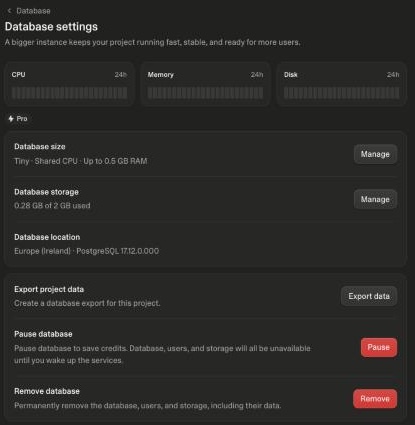
Before starting, Lovable warns that the export is saved to your Cloud storage and that, once Cloud has been disabled, you will no longer be able to download it. Our small database was ready in about a minute. It appeared as a private storage bucket called database_export_ plus the date, holding one .backup file. Download it from More → Storage.
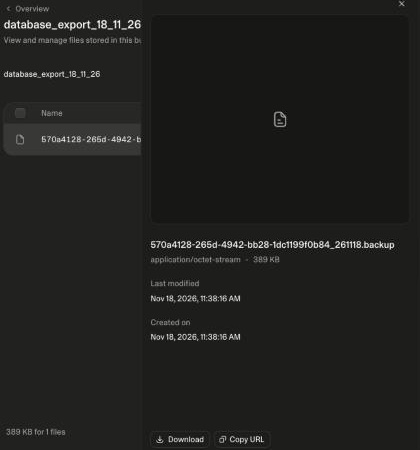
One detail we noticed: the file's download link pointed to a normal supabase.co address. Lovable Cloud runs on Supabase underneath, which is why the export restores cleanly into a Supabase project.
Step 2: Use PostgreSQL 17 tools, or the export won't open
The export is a compressed PostgreSQL archive meant for pg_restore. Our Mac had PostgreSQL 15 and 16 tools installed, and both refused the file:
pg_restore: error: unsupported version (1.16) in file headerOur export was made with pg_dump 18 from a PostgreSQL 17 database, and older tools can't read the newer file format. The pg_restore from PostgreSQL 17 opened it. On a Mac with Homebrew:
brew install postgresql@17
/opt/homebrew/opt/postgresql@17/bin/pg_restore --version
Step 3: Don't restore the whole file
List what's inside before restoring anything:
pg_restore -l field-notes.backup > contents.txtOur export had 630 entries. Most of them belong to Supabase itself: the auth, storage, realtime, vault and graphql schemas and their settings. A new Supabase project already has all of those, so restoring the whole file on top would clash with them. What your app needs is much smaller:
- Your own schema: the tables, functions, triggers, security policies and permissions in
public. - Your users: the rows in
auth.usersandauth.identities. - Your data: the rows in your
publictables. - Triggers on the users table, such as the one that creates a profile when someone signs up. Ours lived on
auth.users, so it was easy to miss.
We pulled those out of the archive like this. Replace profiles and notes with your own table names:
# your app's schema in public (no data)
grep " public " contents.txt | grep -vE "TABLE DATA|DEFAULT ACL|ACL - SCHEMA public" > app-schema.list
pg_restore -L app-schema.list --no-owner -f app-schema.sql field-notes.backup

# triggers your app put on the users table
grep "TRIGGER auth users" contents.txt > auth-trigger.list
pg_restore -L auth-trigger.list --no-owner -f auth-trigger.sql field-notes.backup

# users and app data
pg_restore -a -n auth -t users -t identities -f users.sql field-notes.backup
pg_restore -a -n public -t profiles -t notes -f app-data.sql field-notes.backup
Step 4: Restore into your Supabase project
We ran the result in our new project's SQL Editor, so we didn't need to share the database password. Three things needed fixing first:
- Remove the
\restrictand\unrestrictlines. Newerpg_dumpversions add them at the top and bottom of each file. They are commands for thepsqlterminal tool, and the SQL Editor can't run them. - Turn the data into INSERT statements.
pg_restorewrites data asCOPYblocks meant forpsql. We converted them to plainINSERTstatements with a short script so they could run in the SQL Editor. - Get the order right. The data file listed
auth.identitiesbeforeauth.users, but each identity points to a user, so users must go in first. Then your app's data. Then, last, the trigger onauth.users. If the profile trigger exists while you insert users, it creates profiles of its own, and inserting your exported profiles then fails on duplicates.
The final order: app schema, then users, then identities, then app data, then the users-table trigger. Everything came across:
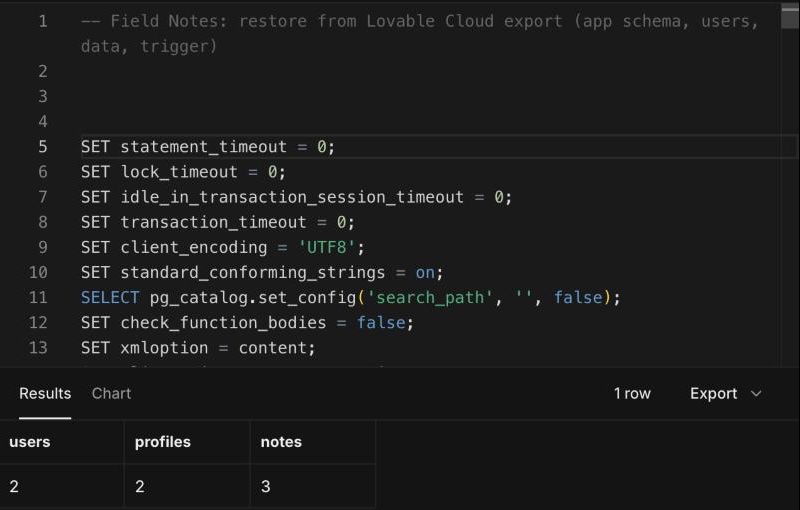
The export also included explicit GRANT statements for each table. That matters in 2026, because Supabase no longer gives new tables API access automatically. Without those grants, the app would get "permission denied" errors.
Step 5: Point the app at the new project
Our Lovable app kept its backend settings in the .env file. The address was on a lovable.cloud domain, not supabase.co:
SUPABASE_PROJECT_ID="gaaat..."
SUPABASE_PUBLISHABLE_KEY="sb_publishable_Cdro6..."
SUPABASE_URL="https://c--cd0e....-prod.lovable.cloud"
VITE_SUPABASE_PROJECT_ID="gaaat..."
VITE_SUPABASE_PUBLISHABLE_KEY="sb_publishable_Cdro6..."
VITE_SUPABASE_URL="https://c--cd0e....-prod.lovable.cloud"
Replace all six with your new project's ID, its URL (https://YOUR-PROJECT.supabase.co), and its publishable key from Project Settings → API Keys in Supabase. Lovable's docs say to move the code itself with Git sync. The code view in Lovable also has a Download button.
Step 6: Check that users can still log in
This is the test that matters most. We pointed a small page at our new Supabase project, using the same Supabase client calls as the app, and signed in as Amina with the password she had on Lovable Cloud:
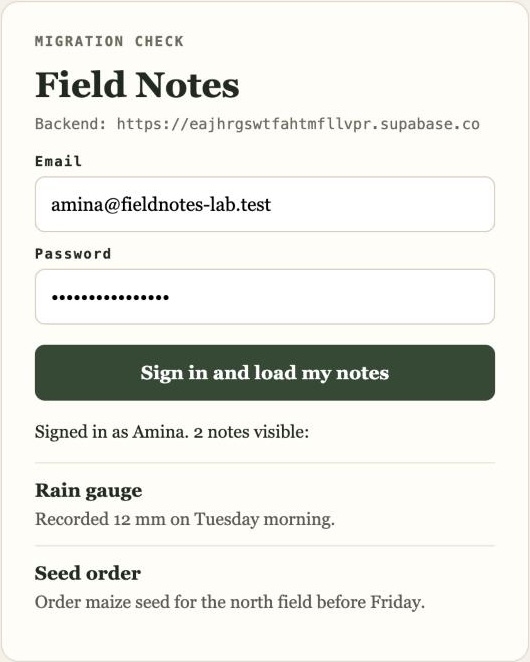
Three things are confirmed here:
- The password works. Amina didn't have to reset anything.
- Her profile came across. The page greets her by her display name.
- The security rules still work. She sees only her own 2 notes, not Brian's.
Anyone who was logged in during the switch has to log in once more, because their old session belongs to the old backend.
We tested this with a small page rather than the full Lovable app, because the point was the backend. Once you swap the .env values, run your real app and test every feature before you go live.
Step 7: Set up what the export left behind
- Storage files: download them from More → Storage in Lovable and upload them to buckets of the same name in Supabase, with matching storage policies.
- Edge functions: their code is in your project's code, usually in
supabase/functions. Deploy them to the new project and add their secrets again. - Sign-in settings: Site URL, redirect URLs, email confirmation and Google or Apple login are project settings, not data. Set them in Supabase's Authentication settings. Our guide to Supabase login errors shows what breaks when these are wrong.
- Email sending: connect your own email provider in Supabase. The built-in one is for testing.
- Scheduled jobs: check each job's target address and credentials before turning it on in the new project.
Don't delete Lovable Cloud yet
Keep the Lovable Cloud project until the new backend has run your real app for a while. Removing the Cloud database deletes your users, your files and your export, and it can't be undone. Lovable's docs call removing it "a destructive action, not a migration step". When you're sure, removing it stops it using credits.
Want us to do the move?
We move Lovable apps to their own Supabase projects, including users, files, functions and login settings, and test it before anyone switches over. See how we work on Lovable apps, or message us on WhatsApp with your project.
Frequently asked questions
Do my users need to reset their passwords after leaving Lovable Cloud?
No. The export includes password hashes. In our test, a user signed in to the new Supabase project with her original password. Users who were logged in during the switch need to log in again.
Can I move from Lovable Cloud to Supabase in one click?
No. Lovable's documentation says there is no one-step move. You export the database, restore it, and move files, code and settings yourself. Remixing a project creates another Lovable Cloud project. It doesn't switch the backend.
Why does pg_restore say "unsupported version (1.16) in file header"?
Your pg_restore is older than the tool that made the export. Install PostgreSQL 17 or newer client tools and use that pg_restore.
Can I restore the whole Lovable export into Supabase?
The export contains Supabase's own internal schemas as well as your app. A new Supabase project already has those, so restore only your app's schema, your users and your data, as shown above.
- #Lovable
- #Lovable Cloud
- #Supabase
- #Migration
- #vibe coding

