Web Development
Lovable Login Not Working? 7 Supabase Auth Errors and How to Fix Each One
The Supabase error messages behind most Lovable login problems, each reproduced on a test project, with what causes it and how to fix it.
 Kalemba Jamil9 min read

Your Lovable app's login worked in the preview. Now a real user says they can't sign in, or the Google button opens a page of code, or the confirmation email sends people to localhost. Almost every Lovable app logs people in with Supabase, so these problems come down to a handful of Supabase error messages. Each one has a specific cause.
We reproduced each error below on a test Supabase project with a small login page in November 2026. The screenshots are real. The accounts in them are test accounts.
First, find the real error message
Many generated login screens show only "Something went wrong", or nothing at all. The real message is still there:
- In the browser: open the developer tools (right-click, Inspect), try to log in, and look at the Console, or at the failed request to
/auth/v1/in the Network tab. Its response contains the message and an error code. - In Supabase: open your project's Logs and choose the Auth logs. Every failed sign-in is listed there with its reason.
Then match the message to the sections below. If your app runs on Lovable Cloud, the backend is managed through Lovable, so the settings mentioned here are reached from Lovable rather than from a Supabase dashboard you log into.
1. "Invalid login credentials"
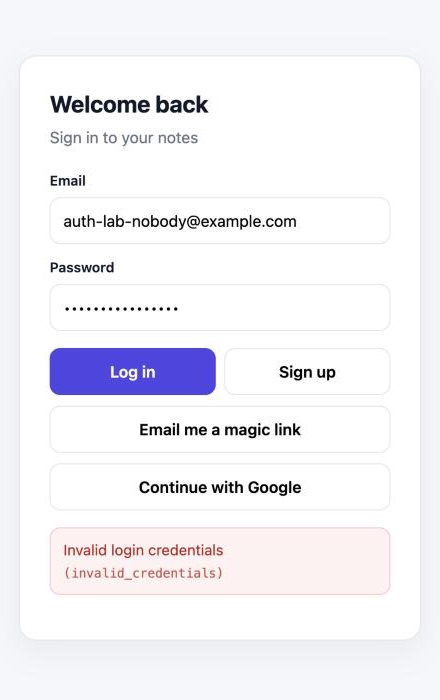
Supabase shows this one message for several different situations, on purpose, so attackers can't find out which emails have accounts. It means one of these:
- The password is wrong. Make sure your app has a working "Forgot password" flow.
- There is no account with that email. We got this exact message for an email that had never signed up.
- The account has no password. People who signed up with Google or a magic link have no password, so a password login fails with this same message. We saw this happen on our test project to an account with no stored password.
Fix: In Supabase, open Authentication → Users and search for the email. If it isn't there, the person never finished signing up. If it is, the user's provider shows how they signed up, so you can tell them to use Google or reset their password.
2. "Email not confirmed"
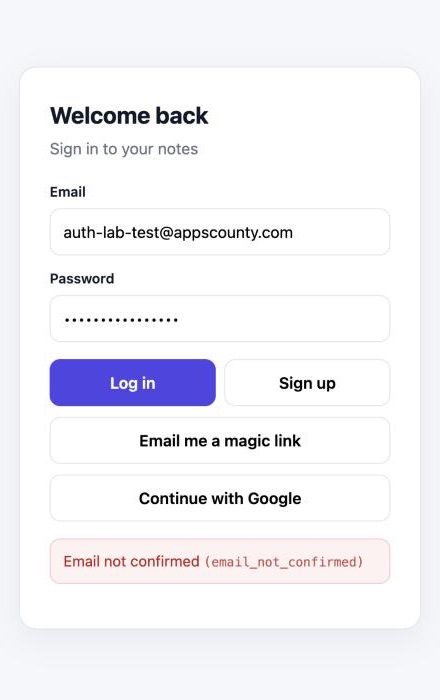
Email confirmation is on by default. Until the person clicks the link in the confirmation email, every login attempt returns this error, even with the right password.
Fix:
- Tell users what to do. After sign-up, show "Check your email to confirm your account", and on this error, offer to resend the email with
supabase.auth.resend({ type: 'signup', email }). - Make sure the emails arrive. Supabase's built-in email sender is meant for testing and has low sending limits. For a live app, connect your own email provider under Authentication → Emails → SMTP Settings. If users say the email never came, this is the usual reason.
- While testing only, you can switch off "Confirm email" under Authentication → Sign In / Providers. Switch it back on before launch if you need verified emails.
3. "Email address ... is invalid"
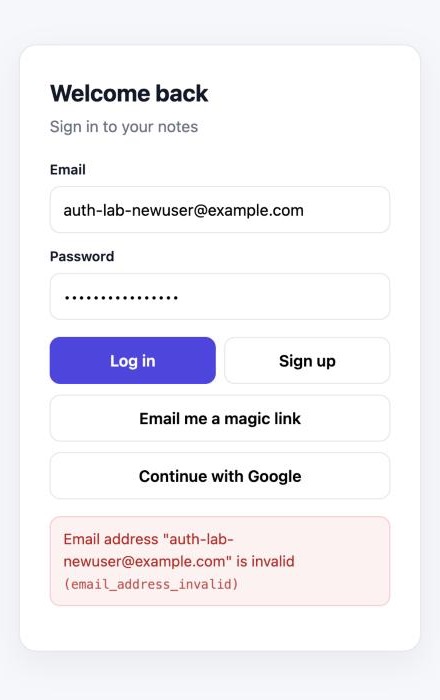
We hit this while testing: Supabase refused to create an account for an address at example.com, a domain reserved for examples. If you test sign-up with made-up addresses, this is what you get, and it can look like your sign-up form is broken when it isn't.
Fix: Test with addresses on a real domain that you control. If real users see this error, check that your form isn't adding spaces or changing the address before sending it.
4. "For security purposes, you can only request this after ... seconds"
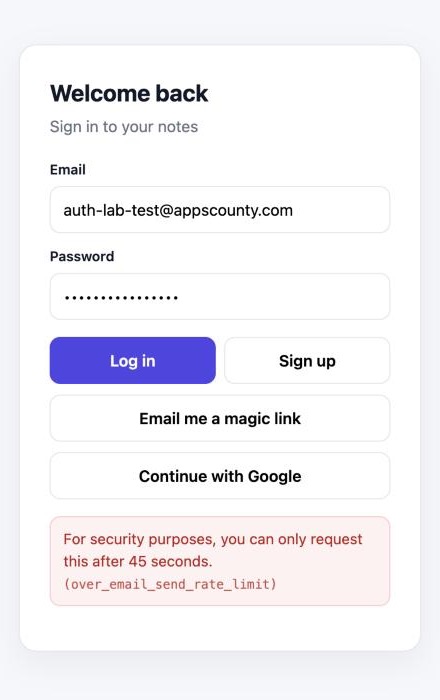
Supabase won't send another email to the same address within a short time. We asked for a magic link right after signing up and were told to wait 45 seconds. On top of this, the built-in email sender has a low limit on how many emails it sends overall.
Fix: Disable the "Send" or "Resend" button for a minute after each click and show a countdown, so impatient users don't hit the limit. For a live app with real sign-up volume, use your own email provider (SMTP). With custom SMTP connected, you can adjust both the hourly email limit and the minimum time between emails to the same user under Authentication → Rate Limits.
5. "Unsupported provider: provider is not enabled"

This one doesn't appear inside your app. The user clicks "Continue with Google" and lands on a page of raw code like the one above. It means the Google button exists in your app, but Google sign-in was never switched on in Supabase. AI tools add the button easily. The setup behind it is a separate job.
Fix:
- In Google Cloud Console, create an OAuth client ID (type: Web application).
- Add your Supabase callback address,
https://YOUR-PROJECT.supabase.co/auth/v1/callback, as an authorised redirect URI. - In Supabase, open Authentication → Sign In / Providers → Google, switch it on, and paste the client ID and secret.
- Check the redirect URLs in the next section, or Google login will work but send people to the wrong place.
6. Login or confirmation links send people to localhost
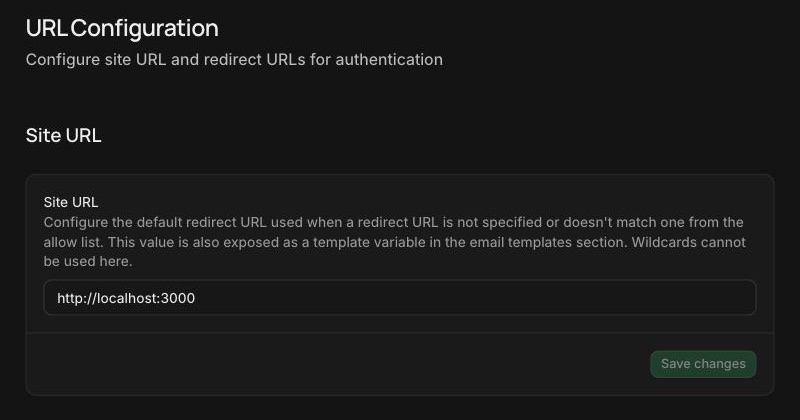
A new Supabase project starts with its Site URL set to http://localhost:3000 and no allowed redirect URLs. As the settings page says, the Site URL is used whenever your app doesn't name a redirect address, or names one that isn't on the allow list. So confirmation emails, magic links, password resets and Google logins send users to localhost, which only exists on a developer's computer. Users see "This site can't be reached".
Fix: In Authentication → URL Configuration:
- Site URL: set it to your live address, for example
https://yourapp.com. - Redirect URLs: add every address your app runs on: your custom domain, your Lovable preview or published domain if you still use it, and
http://localhost:3000/**for local development. - Mobile apps: a Capacitor app needs its own redirect scheme. We cover that in fixing Supabase login in a Capacitor app.
Then request a new link. Links that were already sent still contain the old address.
7. Logged in, but saving fails: "new row violates row-level security policy"
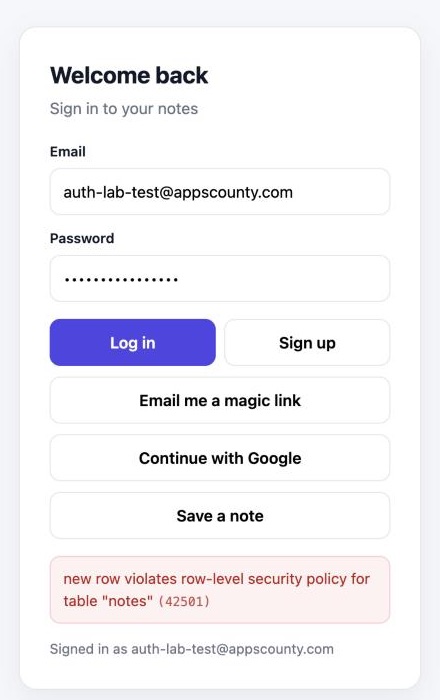
Login works, but the first thing the user saves fails. In our test, the notes table had a sensible rule: users may only add notes where user_id is their own ID. The app's save code didn't send a user_id at all, so the database refused the row. This mismatch between generated front-end code and the database rules is very common in AI-built apps.
Fix: Let the database fill in the user automatically, so the app can't forget it:
alter table public.notes
  alter column user_id set default auth.uid();
After that change, the same button worked:
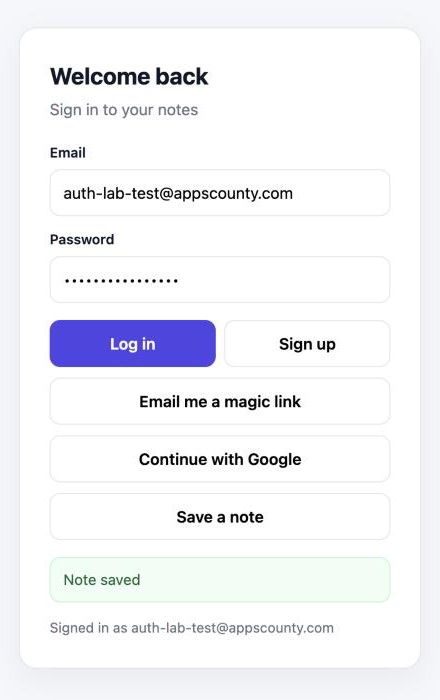
Don't "fix" this error by switching off Row Level Security or adding a policy that allows everything. That makes the error go away by making every user's data open to everyone. Our guide to checking Supabase RLS shows what goes wrong when you do, with screenshots from the same test project.
Still stuck?
Some login problems are harder to spot: users logged out on every refresh, logins that work on desktop but not in the mobile app, or sign-ups that succeed but never create the user's profile. We fix Supabase login in apps built with Lovable, Bolt, Base44 and Cursor, and we can usually tell what's wrong from the error message and your Auth logs. See how we fix Lovable apps, or message us on WhatsApp.
Frequently asked questions
Why does my Lovable login work in the preview but not on my domain?
Usually the Site URL and Redirect URLs in Supabase still point at localhost or the preview address. Add your domain under Authentication → URL Configuration and request a fresh link.
Why does Supabase say "Invalid login credentials" when the password is right?
The account may not exist under that exact email, or it may have been created with Google or a magic link and so has no password. Check the user in Authentication → Users.
Why are my Supabase confirmation emails not arriving?
The built-in email sender is for testing and has low limits. Connect your own email provider in the SMTP settings for a live app, and check the Auth logs for sending errors.
Should I turn off email confirmation to fix "Email not confirmed"?
Only while testing. For a live app, keep it on if you need real email addresses, and make sure the confirmation email arrives and links to your live site.
- #Lovable
- #Supabase
- #Authentication
- #Login
- #vibe coding
