Mobile Development
App Over 200 MB? Ship the Core First and Download the Rest Later
Apps over 200 MB make people on mobile data wait for Wi-Fi. Here is how we keep the store download small: ship the core, then download the rest while the app is open.
 Kalemba Jamil9 min read

A recent job post we came across described a problem we see more often now: a live marketplace app whose iOS build had grown to 208 MB. Nothing was broken. But at that size, people on mobile data had to be on Wi-Fi to download it.
We have had to shrink an app like this before, by keeping only the core inside the app and moving the rest out: some features became modules downloaded when needed, and heavy assets moved online, cached on the phone after the first download. This guide explains that approach, the store rules behind it in 2026, and a mistake we made while building the demo for this article.
What the 200 MB line actually does
- iPhone: by default, the App Store asks for permission before downloading apps over 200 MB on mobile data. Users can change this in Settings, under App Store, App Downloads (Apple's iPhone guide), but many people never change it.
- Android: Google Play shows a non-blocking warning to people on mobile data when an app is over 200 MB. The hard limit is higher: 500 MB for the base module of an app bundle, measured as the compressed download.
So 200 MB is rarely a wall. It is a speed bump at the exact moment someone has decided to try your app, which is the worst place to put one.
Measure the size the stores report after processing, not the file on your computer. A build can grow or shrink once Apple and Google process it for each device, and that processed number is the one your users download.
First, take the easy savings
Before changing how the app loads content, check for the usual waste:
- Images and videos far larger than any phone screen needs, or in old formats.
- Libraries that were added once and are no longer used, especially in apps built quickly or with AI tools.
- In Capacitor apps, source maps and large media copied into the web build. Capawesome's guide to reducing Capacitor bundle size shows how big source maps can get.
If the app is still too big after that, the content itself has to move.
Ship the core, download the rest while the app is open

Decide what a new user needs in their first five minutes. That stays in the app. Everything else, such as lesson videos, map regions, product catalogues or rarely used features, is downloaded later. Three details decide whether this feels smooth or broken:
- Never show an empty screen. When we did this on a client app, we added loading animations while the assets downloaded, so the user could open the app and use the main feature while the rest arrived.
- Download while the app is open, not after it closes. Background downloads come with extra permissions and system rules (more on that below). Fetching while the user is in the app avoided all of that.
- Save each file as it arrives. If the connection drops after five of eleven files, the retry should fetch six, not eleven.
What it looks like in a real app
To show the pattern, we built a small Capacitor app and ran it on an iPhone simulator. The lesson of the day is part of the app. The crop guides are an optional pack that downloads when the user asks for it.
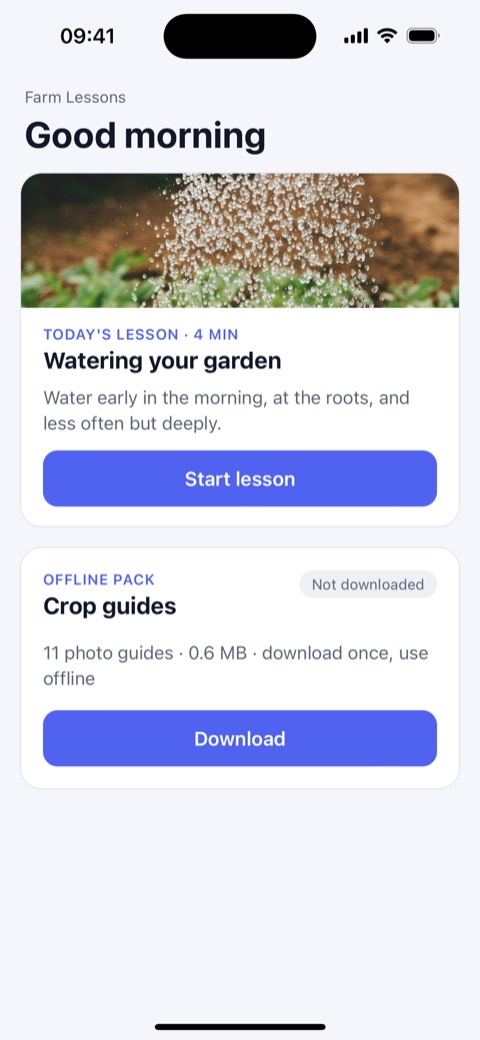
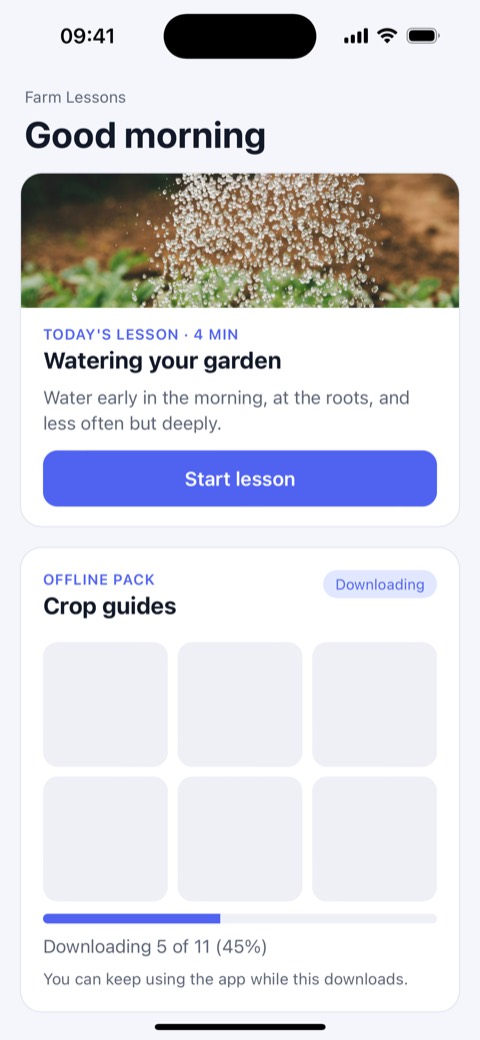
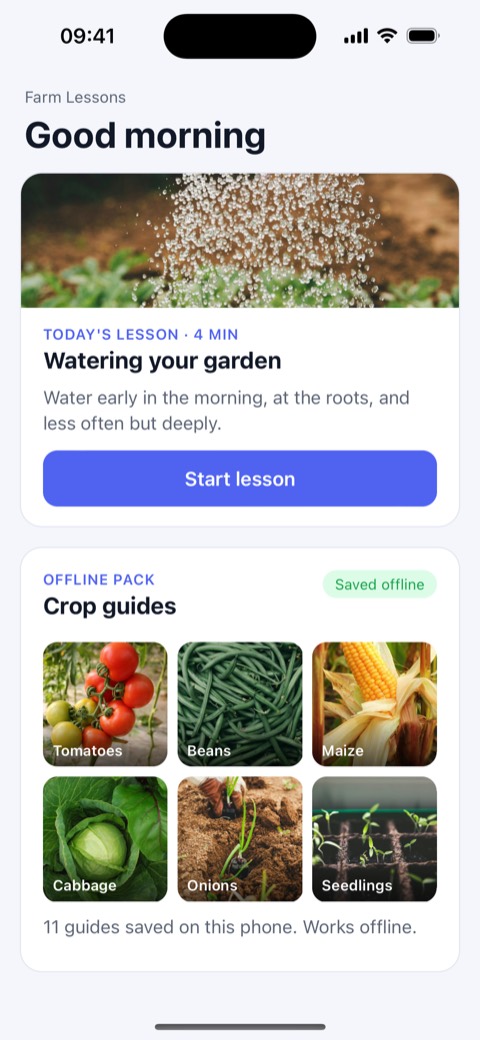
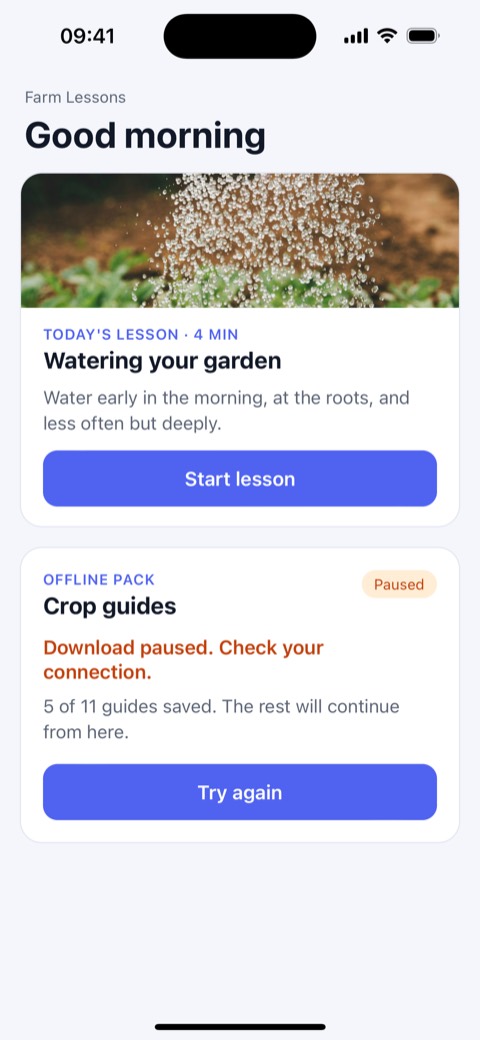
The full code is open source: capacitor-offline-download-demo on GitHub. The download logic is about 160 lines of plain JavaScript, so it works the same in an app wrapped from Lovable, Bolt or any React project.
Why we avoid background downloads
Downloading while the app is closed sounds better for users, but it changes what the app is allowed to do:
- Android needs a foreground service with a visible notification, declared with the right type and permission, or a scheduled job with WorkManager. Since Android 15, data sync foreground services are limited to 6 hours in every 24, after which the system stops them.
- iOS has background download sessions, which hand the transfer to the system and wake your app when it finishes, adding another path to build and test.
For most apps, a download that runs while the user is in the app, with clear progress, is simpler and more reliable. Keep background downloads for content that is genuinely large, such as offline maps for a whole country.
Or let the stores deliver it
Both stores have their own systems for content that should not be in the first download:
- Google Play: Play Asset Delivery splits content into packs delivered at install, straight after install (fast-follow) or on demand while the app is running. Fast-follow and on-demand packs do not count toward the size shown in the Play Store.
- Apple: On-Demand Resources, the older way to do this on iOS, are deprecated starting in iOS 27. Apple's replacement is Apple-Hosted Background Assets, with 200 GB of hosting included in the developer membership. If many of your users have older iPhones, check which iOS versions it supports before relying on it.
Store-managed delivery suits native apps and games. For Capacitor, React Native or Flutter apps that already have a backend or CDN, fetching files yourself, as in the demo, is often quicker to build and works the same on both platforms.
A Capacitor mistake we made while building the demo
The first version saved the downloaded files with the browser's Cache Storage API. It worked in the browser, then every download failed inside the iPhone app:
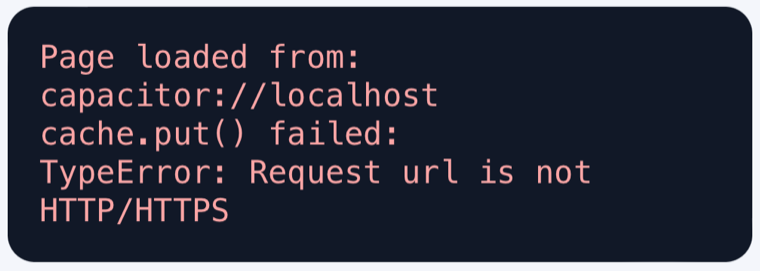
On iOS, Capacitor serves your app from capacitor://localhost, and Cache Storage only accepts http and https addresses. You cannot switch the iOS scheme to https either, because the iOS web view handles that scheme itself. On Android, Capacitor uses https by default, which is why the same code can work there and fail only on iPhone.
We switched the demo to IndexedDB, which works everywhere. For large content in a real app, use the Capacitor Filesystem plugin instead: Capacitor's storage guide warns that iOS can clear web storage, IndexedDB included, when the phone runs low on space.
If your app has outgrown the stores' comfortable size, or you are taking a Lovable or Bolt app to the App Store and want it small from the start, we can help you plan what ships and what downloads later.
Common questions
Does content downloaded after install count toward the 200 MB?
No. The limit applies to the download from the App Store or Google Play. Files your app fetches later are not part of it, though they still use the user's data, so tell people how big a pack is before they download it.
Is the 200 MB limit the same on Android?
Not quite. Google Play shows a warning on mobile data above 200 MB, but the actual limit for the main download of an app bundle is 500 MB. Apple's App Store asks iPhone users for permission above 200 MB unless they have changed the setting.
- #App size
- #App Store
- #Google Play
- #Capacitor
- #Offline apps


